How can I export content from JollyDeck as SCORM?
Any course or test created in JollyDeck can be exported as a SCORM package and uploaded to your Learning Management System (LMS).
You can export a single course or test, or combine multiple pieces of content into one SCORM package.
Step 1: Create your SCORM export
- Open your course or test in the Content Editor.
- Click the Home icon in the top-left corner and select Export as SCORM.
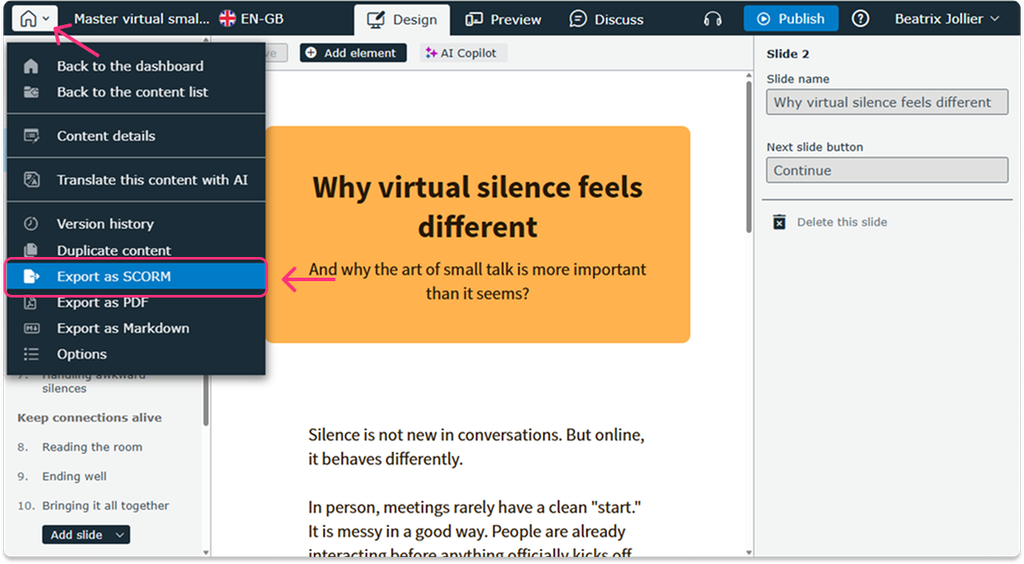
- Click Create SCORM package.
Your current course or test will automatically be added as the first content item in the SCORM package.
Step 2: Adjust SCORM export settings
The available settings depend on the type of content you’re exporting.
Exporting a course
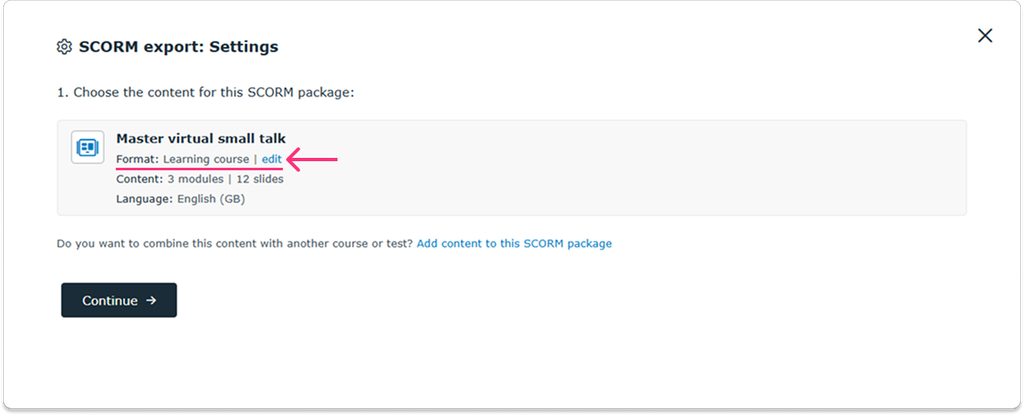
By default, your slides are exported as a Learning course, where learners follow a structured learning path.
To change the format, click Edit (image below) and select Reference, which allows learners to navigate freely between slides.
Exporting a test
If you’re exporting a question bank, JollyDeck automatically adds it as a Test.
You can configure:
- Number of questions included in the test
- Time limit for completing the test
- Pass rate required to pass
- Number of attempts allowed
- Test instructions displayed before the test begins
Adding multiple pieces of content
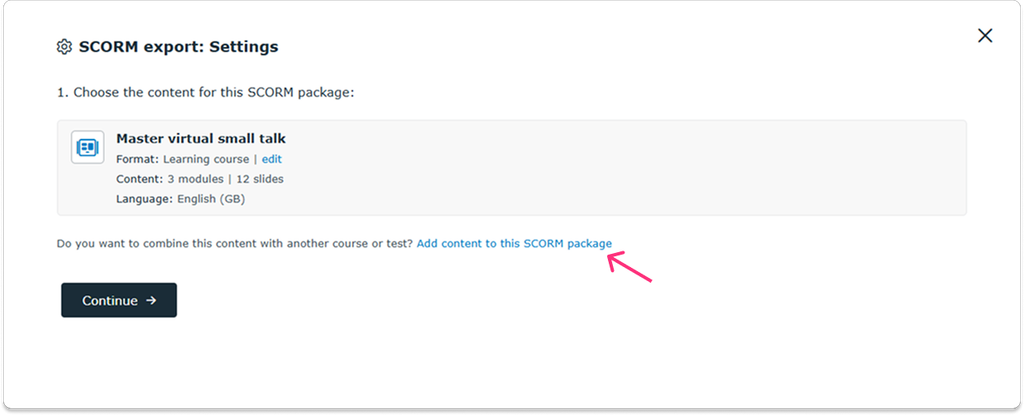
To combine a course and a test, or several courses, into one SCORM package, click Add content to this SCORM package and select the additional content.
For more information, see How do I export multiple content pieces as SCORM?.
Click Continue to configure your SCORM package.
Step 3: Choose SCORM type and version
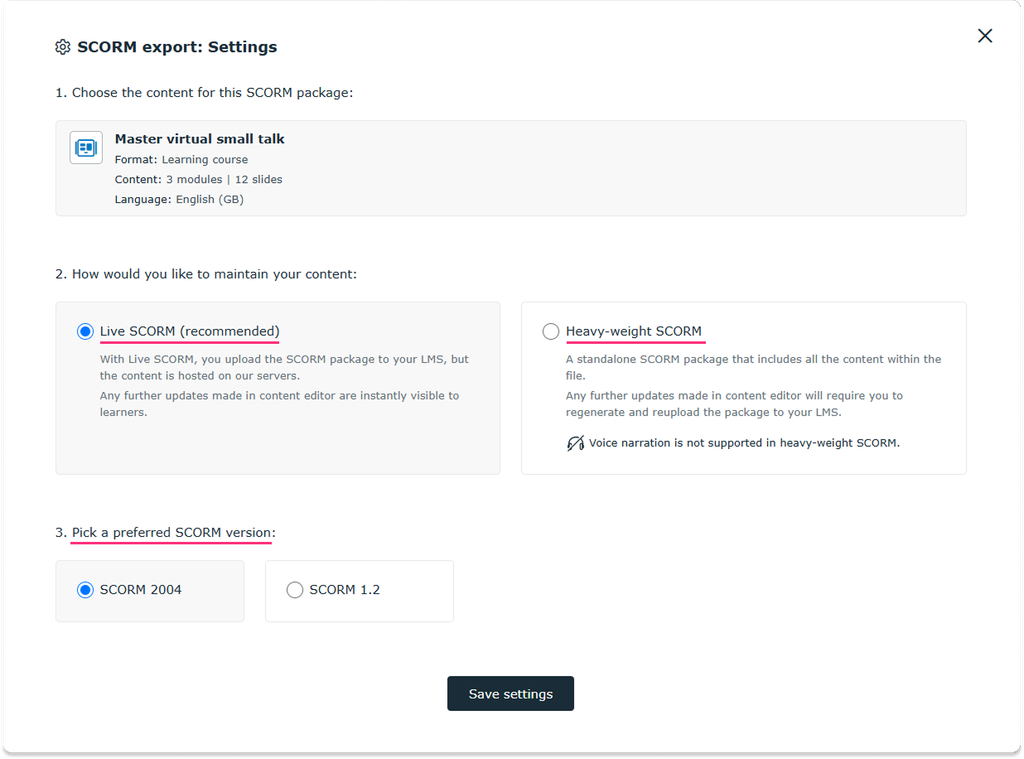
Next, select the SCORM type and version that best suit your needs and are compatible with your LMS. These settings determine how your content is delivered and how learning progress is tracked.
1. Select the SCORM type
- Dynamic SCORM (Live SCORM): A lightweight package (typically less than 10 KB) that loads content hosted in JollyDeck. Updates to your published content are reflected without needing to upload a new package to your LMS.
- Standalone SCORM (Heavy-weight SCORM): A self-contained package containing your learning content, which you upload directly to your LMS.
Learn more about the differences between Dynamic and Standalone SCORM.
2. Select the SCORM version
Both types are available in SCORM 1.2 and SCORM 2004.
Choose the version supported by your LMS to ensure compatibility and accurate learning tracking.
Step 4: Export your SCORM package
Once you’ve configured your settings:
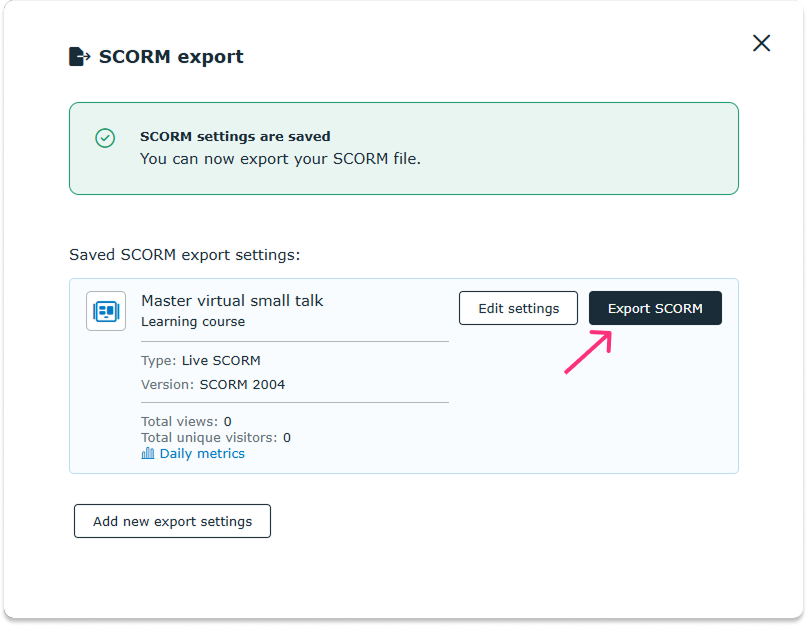
- Save your SCORM export settings.
- Click Export to download your SCORM package.
Common issues and troubleshooting
SCORM package is too large
Consider using Dynamic SCORM, which produces a much smaller package, or splitting your content into smaller modules.
SCORM package fails to upload
Check that you’ve selected a SCORM version supported by your LMS. If the issue persists, try exporting the package again or contact your LMS provider.
Learning progress or test results aren’t tracked correctly
Check your LMS tracking and completion settings. If the issue continues, contact your LMS provider to verify that the SCORM data is being received and saved correctly.
If you need further assistance, contact the JollyDeck Support team at support@jollydeck.com.