Creating content
How to exclude images and questions from narration?
To exclude specific images and questions from your course narration:
- Open your course in the Design tab
- Select the image or question on the slide.
- In the right-hand editing toolbar, turn off the Include in narration toggle.
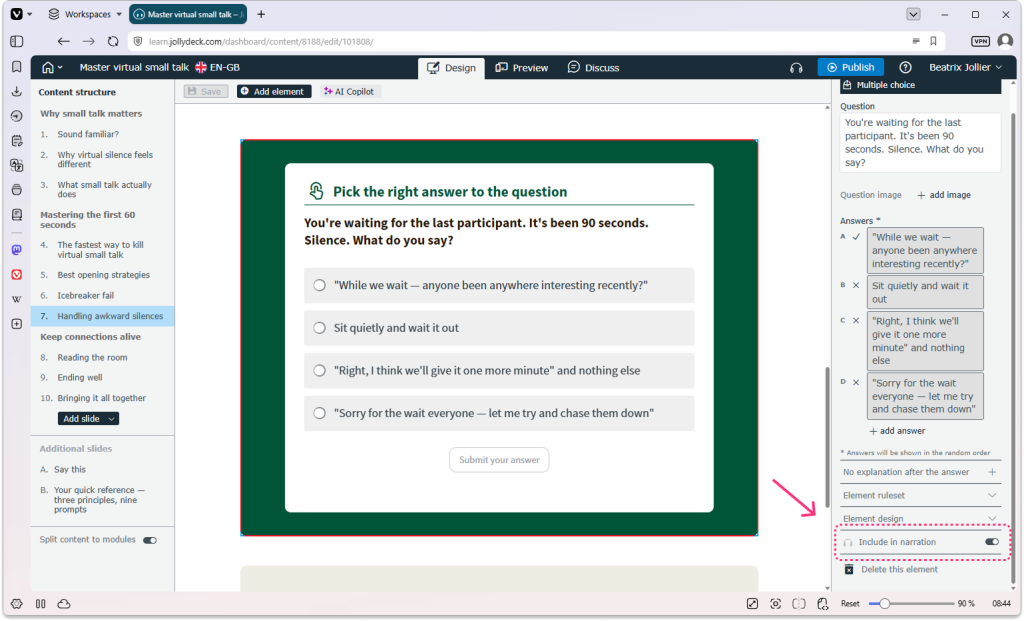
Note: Currently, you can exclude the following question types from narration: true/false questions, multiple-choice questions and survey questions.
What happens when you exclude questions from narration?
When a question is excluded from narration, the narrator will briefly instruct learners to read the question on the screen and submit their answer. The audio will then pause, giving learners time to complete the question at their own pace.
Once the learner is ready to continue, they can click Play on the audio player in the bottom-right corner to resume the narration.
What happens when you exclude images from narration?
Excluded images will not be mentioned or described in the narration audio.
Related resources: