Control how AI writes your course: Writing settings in JollyDeck document-to-course converter


AI can turn the same source document into very different courses. The question is: how much should AI be allowed to change?
In JollyDeck, that decision stays with the author. Before generating the course, you choose how closely the writing should follow the source and how much guidance the learner should receive.
Check the video below to see how writing settings work in practice.
Read further to find out:
- What writing style and learner guidance each control
- Which writing style fits your source material
- How learner guidance changes the tone, not the content
- How to preview and compare your options before generating
- Which combination works best for different types of content
Control how the course is written
An approved policy may need to stay very close to the original wording. A dense manual may need clearer language. And complex material may need more explanation to work as learning.
JollyDeck gives you two separate controls:
- Writing style: how much the AI can rewrite the source.
- Learner guidance: how the course speaks to and supports the learner.
You decide how far the generated course can move away from the wording and structure of the source.
With writing settings you have more control over how the finished course reads, rather than applying the same AI writing style to every document.
Writing styles: how closely should the course follow the source?
JollyDeck offers three writing styles, each suited to a different type of source material.
Keep close to the source
Choose Keep close to the source when the original wording needs to stay intact.
The AI makes only minor edits for grammar and clarity, while keeping the wording and structure close to the original as much as possible. It does not add explanations or rewrite the content simply to make it sound more like a course.
Best for: policies and compliance materials, formal procedures, technical instructions, approved or regulated content.
Rewrite for clarity
Use this when the information is right but wasn’t written with learners in mind.
Rewrite for clarity gives the AI more freedom to improve readability. It can rephrase sentences, simplify wording and organise the content so it is easier to scan and follow. It can clarify what is already present in the source, but it does not introduce new concepts or outside information.
Best for: internal guides, training manuals, onboarding materials, dense knowledge-heavy presentations.
Rewrite with explanations
Choose Rewrite with explanations when learners need more support to understand the material, not just a cleaner version of it.
The AI can add short explanations, define terms used in the source and connect ideas more clearly. It can also explain why something matters when this is supported by the source.
Best for: complex technical material, unfamiliar concepts, courses aimed at learners with less prior knowledge.
The more freedom you give the AI, the more it can adapt the content for learning — while the source still defines what the course can and cannot say.
Learner guidance: how the course speaks to the learner
Once you have chosen the writing style, you can also decide how actively the course should guide the learner.
Learner guidance is available with Rewrite for clarity and Rewrite with explanations, but not with Keep close to the source.
This is because Learner guidance adds things such as signposting, reinforcement and cues about what to focus on. With Keep close to the source, these additions are avoided so the wording and tone remain as faithful to the original as possible.
Present content
Choose Present content when you want the course to stay neutral and information-focused.
The AI presents the material directly, without addressing the learner or adding guidance about what to focus on. This works well for content that should feel concise, formal or reference-like.
Guide the learner
Choose Guide the learner when you want the course to provide more support as learners move through the material.
The AI can draw attention to key points, reinforce important information and help learners see how different ideas connect.
Applying Learner guidance does not give the AI permission to introduce new information. It changes how the existing content is presented, not what the course is allowed to say.
See the difference before generating the course
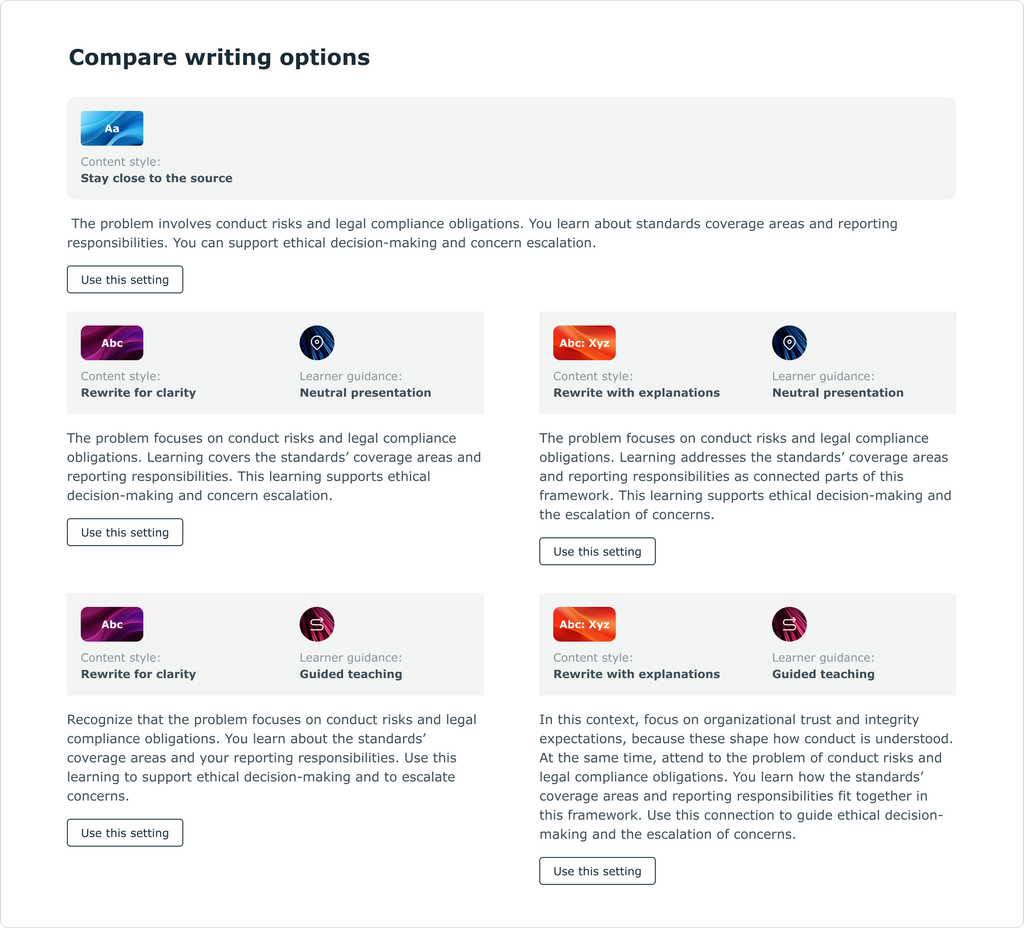
Not sure which option will work best? Preview and compare generates samples from your own source content using the available writing settings.
You can compare how the same material reads with different options before generating the full course.
Which approach should you choose?
There is no single best setting. The right combination depends on the source material and what learners need from it.
| Writing settings | Best for | Example |
| Keep close to the source | Content where wording needs to stay very close to the original. | An approved policy, legal or compliance statement, code of conduct or mandatory safety wording. |
| Rewrite for clarity + Present content | Content that needs to be easier to read but should stay concise and information-focused. | An internal process guide, SOP or technical procedure that is accurate but difficult to follow. |
| Rewrite for clarity + Guide the learner | Content that needs clearer wording plus guidance on what matters most. | An onboarding guide or product training document. |
| Rewrite with explanations + Present content | Complex content that needs more explanation but should stay neutral and direct. | A technical manual or specialist document with unfamiliar concepts. |
| Rewrite with explanations + Guide the learner | Content that needs more explanation and more active learner support. | Training for new employees learning a complex process or unfamiliar topic. |
The easiest way to choose is to see the options applied to your own content. Compare how they read, then pick the one that fits your course best.
Convert your document to e-learning with JollyDeck
Upload a PDF, PowerPoint or Word document, review the generated outline and choose how you want the course to be written.